EECS 183 Labs
Mini Atbash Cipher: Visual Studio 2026 Community Setup
1. Create a New Project
- Open Visual Studio 2026 Community.
- Select
Create a new project. - Choose
Console App(C++). - Name the project (for example,
MiniAtbashLab). - Click
Create.
2. Remove Unneeded Default File
- Delete the Visual Studio-generated default
main.cpp.
3. Add Required Files
Create these files in Visual Studio (recommended, you must have at least two .cpp files and one header file):
main.cppatbash.cppatbash.h
Use right-click (or two-finger tap) on the project name:
Add->New Item...-> C++ File (.cpp)Add->New Item...-> Header File (.h)
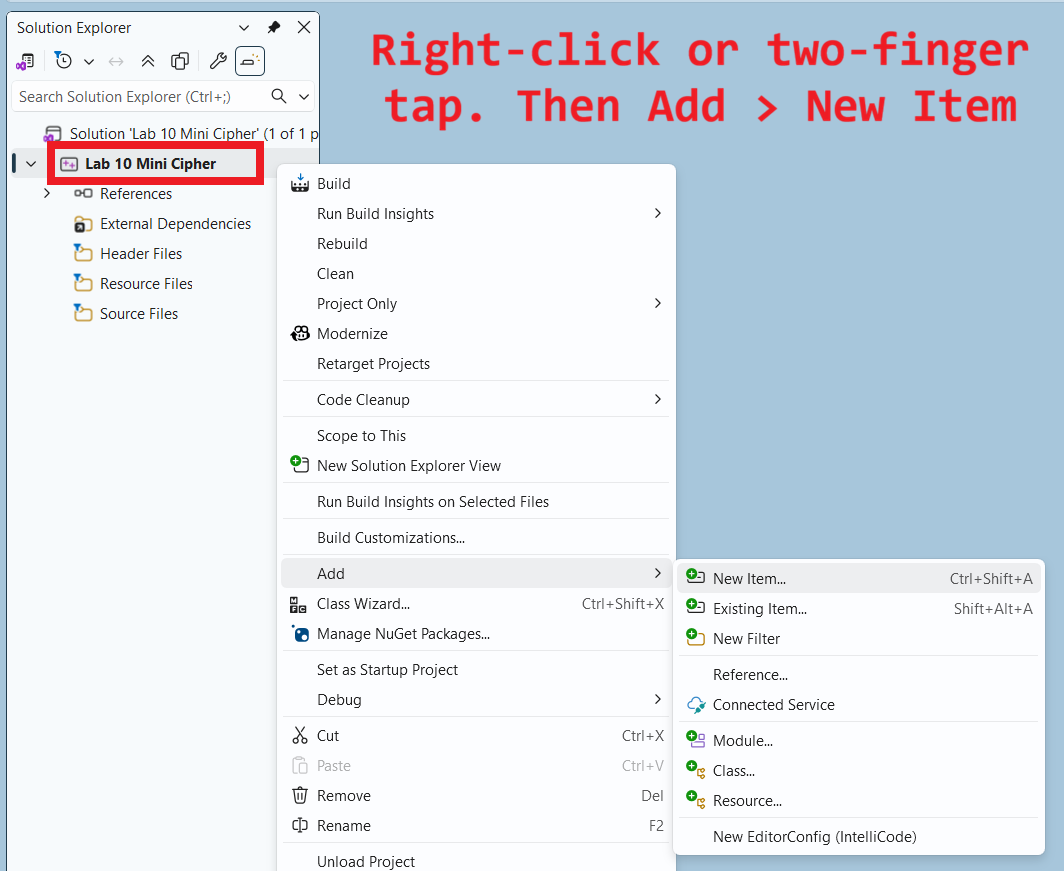
Then select .cpp or .h and edit the file name.
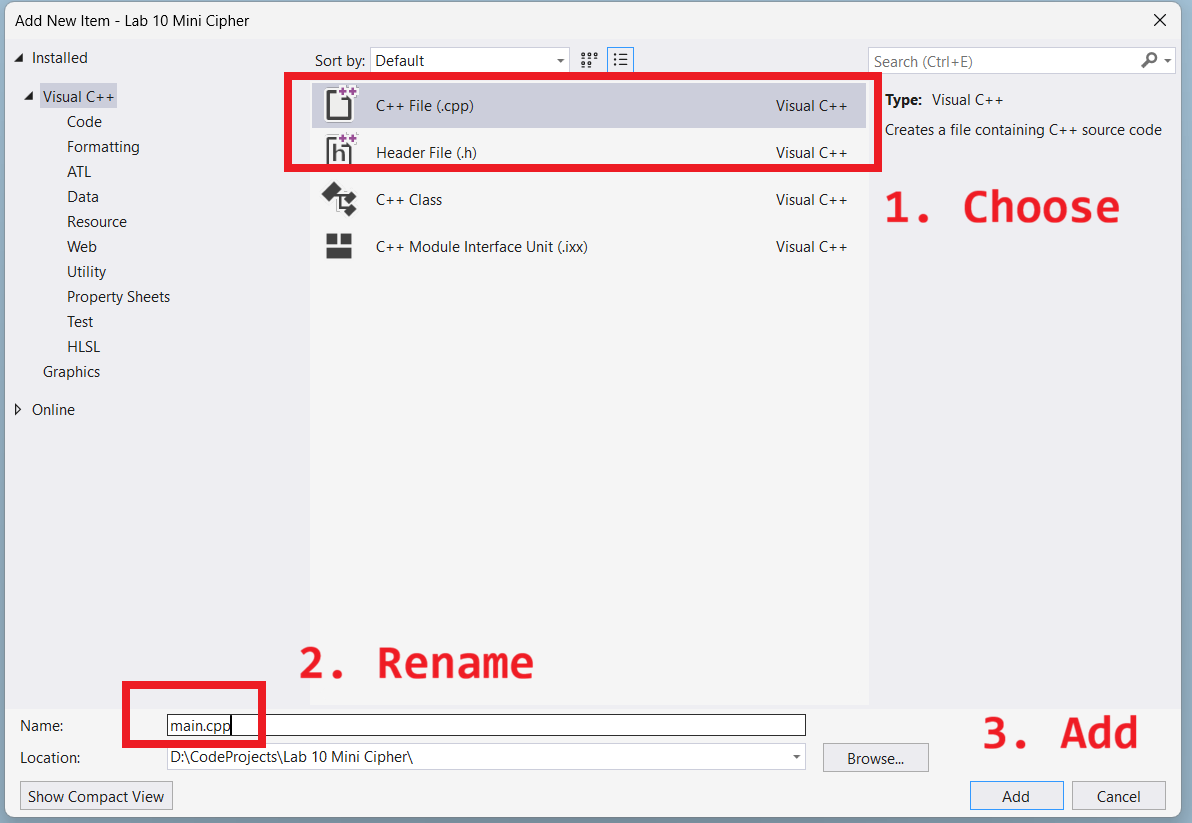
4. Add Includes and Declarations
Your cpp files will need #include and other statements in addition to your functions.
Your header file(s) will also need other statements in addition to your declaration(s).
Refer to zyBooks section 9.2 for what to add to your .cpp and .h or .hpp files.
You can also refer to the starter files for Projects 3 or 4 for examples.
5. Implement Required Behavior
- In
main.cpp, print a short greeting message. - Prompt the user for a message.
- Check if the message has at least one alphabetic character.
- If not, print:
Error: message must contain at least one alphabetical character. - Otherwise call your Atbash cipher function and print the encoded message.
6. Check your Program
- Replicate the Sample Runs
- Check your program output against the expected output in each sample run.
- If any are different, debug and edit your solution until each sample run is the same.
7. Required Submission Check
Before submission, confirm your project contains:
- At least two
.cpp - At least one
.hor.hpp - Each
.cppfile should contain at least one function definition. - Each header file (
.h/.hpp) should contain at least one function declaration or class declaration.