(3) Setting Up VS Code
Due: Monday, January 12, 11:59 PM Eastern
In this document I’ll explain what a coding text editor is, why you need one, and how to set up VS Code as a text editor.
Jungeun Seo made some video walkthroughs for tutorials 1 - 3. You can find them in Tutorial Videos folder on the Google Drive. You’re not required to watch them, but you may find them helpful in combination with the written instructions.
Don’t Use A Word Processor for Coding
When programming, it is essential that you use a text editor, not a word processor. The following are examples of word processors, meaning they are not suitable for programming:
- Microsoft Word
- Apple Pages
- Google Docs
- OpenOffice Writer
- LibreOffice Writer
To avoid problems that can bring you great frustration, never use a word processor, even temporarily, for anything involving code. This includes Microsoft Word, Apple Pages, Google Docs, etc.
If you want to know why a word processor is bad for programming, read the optional section at the end of this document.
Installing Visual Studio Code
An integrated development environment (IDE) is software that includes a special text editor and other tools for programming. Visual Studio Code (VS Code) is an IDE. It has many features that we’ll set up in a later tutorial. For now, we’ll just use its text editor feature.
We’re using Visual Studio Code (icon:  ), not “Visual Studio” (icon:
  ), which is actually a completely different IDE. Note that this is the opposite of what the C++ version of EECS 183 is using!
We’re not expecting that you’ve ever used an IDE before. If you have, though, please use VS Code for this course regardless of any prior experience with other IDEs.
Visit https://code.visualstudio.com/download in a new tab. You should see a big blue rectangular button to download VS Code for your operating system (e.g., Windows or Mac). Click it. (Don’t use the small blue buttons unless you know what you’re doing.)
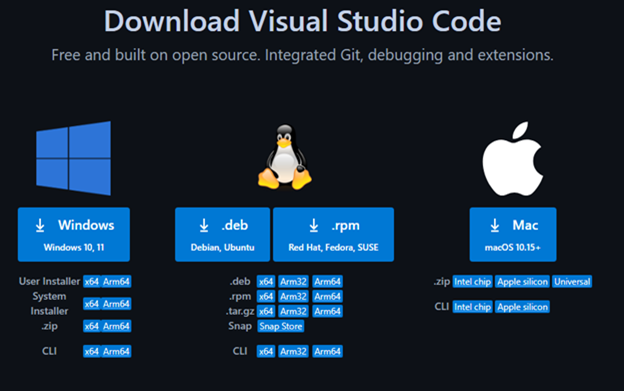
Expand the correct box below according to your operating system.
Windows Users: Installing VS Code (Click for details)
- Open your Downloads folder and find the file you downloaded. Mine is shown below; its version is 1.99.3. Your version number is likely higher than that, but otherwise it should look the same. Double-click on the file.
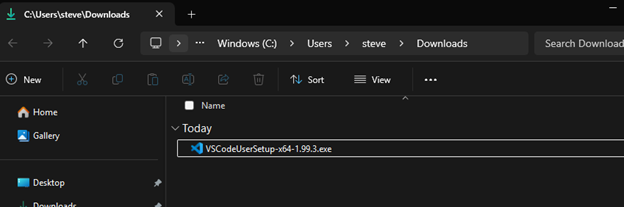
- In the window that pops up, choose “I accept the agreement” and click “Next”.
- The next window says “Select Destination Location”. Don’t change anything, and click “Next”.
- The next window says “Select Start Menu Folder”. Again, don’t change anything and click “Next”.
- The next window says “Select Additional Tasks”. Please check all boxes, as follows, and then click “Next”.
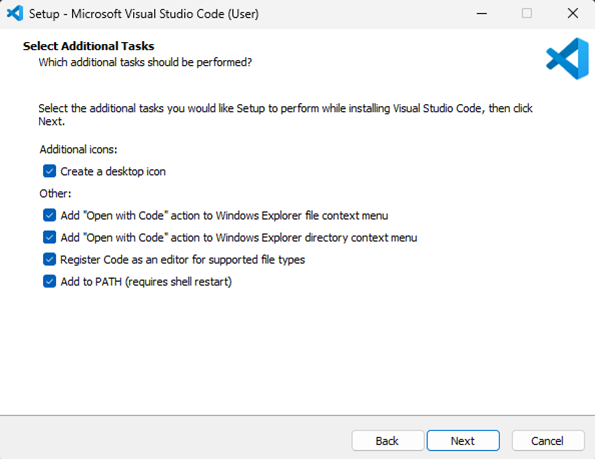
- The next window says “Ready to Install”. Click the “Install” button.
- When installation is finished, click the “Finish” button.
- VS Code will likely open automatically. Go ahead and close the VS Code window, though, so that we can practice the entire process from the beginning.
Mac Users: Installing VS Code (Click for details)
- If Safari asks you whether you want to allow downloads for code.visualstudio.com, say yes.
- Open the Finder, click on Downloads, and find the file you downloaded. It is most likely called “Visual Studio Code.app”, but may have a slightly different name involving either “Visual Studio Code” or “VS Code”.
- If the file name ends with “.zip”, double-click it to “unzip” it, and then double-click the “Visual Studio Code.app” file to run it.
- Otherwise, just double-click the file to run it.
- You may get a warning that it’s a file downloaded from the internet - click the “Open” button. You might see a “Get started with VS Code” section, in which case you can just click “Mark Done” at the bottom.
- Let’s close VS Code now so that we can practice the entire process from the beginning. Find the “Code” menu in the top left corner of the screen, and choose “Quit Visual Studio Code”.
- In the Finder, in your Downloads folder, we want to get the “Visual Studio Code” file to the desktop. There are many ways to do this, but maybe the easiest is to control-click on the file, choose “Copy”, and then control-click on the desktop and choose “Paste Item”. From now on, you can start VS Code by double-clicking on the “Visual Studio Code” icon on your desktop.
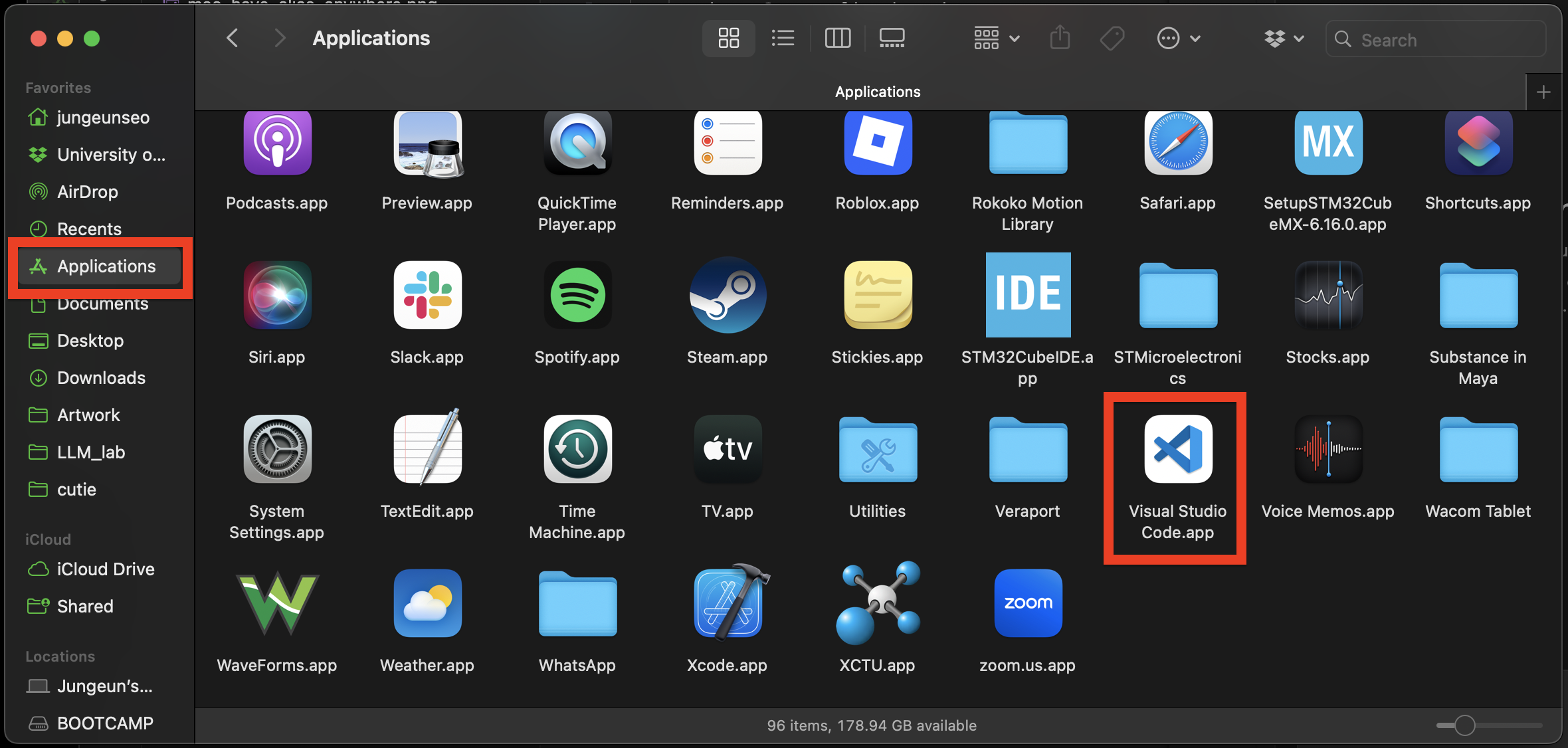
You might see the message below when you try to open VS Code:
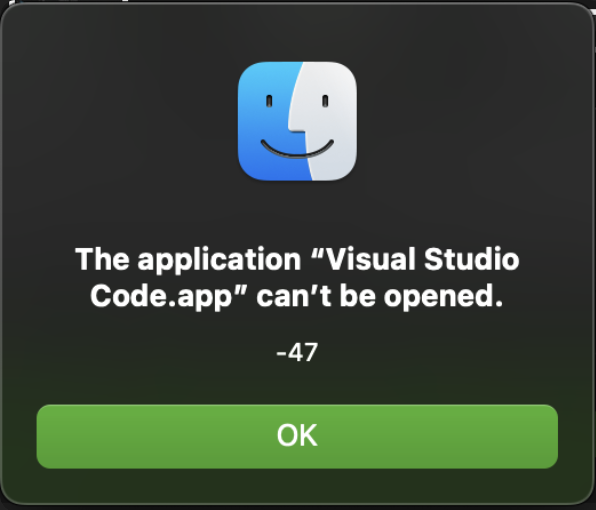 If so, drag
 Visual Studio Code.app into Applications, and open VS Code from the Applications folder:
Opening VS Code and the EECS_183 Folder
Open VS Code by double-clicking its icon on your desktop. Choose File, Open folder, and navigate to your EECS_183 folder inside your Documents folder. Click on the EECS_183 folder to select it, and then click the Open or Select Folder button to open that folder in VS Code.
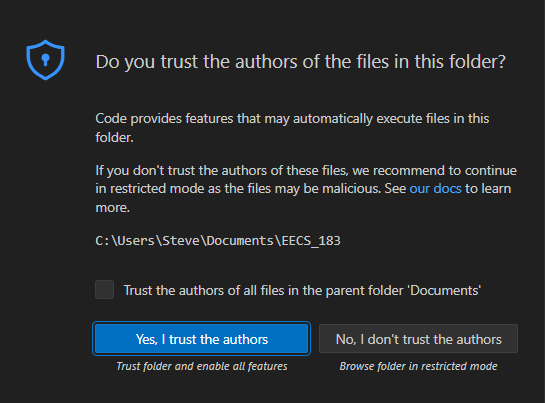
Yes, you can "trust the authors of the files in this folder" (Click for details)
As in the screenshot below, VS Code may ask Do you trust the authors of the files in this folder?. Click Yes, I trust the authors, because you are the author. VS Code asks this question to protect you if you were to download code from somewhere else on the internet (which you shouldn’t unless you know what you’re doing). I recommend you leave the checkbox unchecked – that is, do not select Trust the authors of all files in the parent folder 'Documents'.
You should then see something like this on the left (though your icons may be a little different - that’s ok):
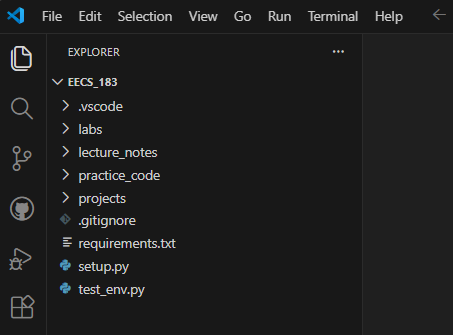
In particular, note that the EXPLORER area shows the contents of your EECS_183 folder.
Always start VS Code using the process above! We need to make sure you always have VS Code open in your EECS_183 folder. You should always see EECS_183 at the very top of the EXPLORER section, as in the image - not Documents nor labs nor anything else.
Installing Needed Extensions
In VS Code, extensions are tools that we can add to make it do something special for us, like give us hints about possible problems in our Python code. At this time, you should see a little window pop up in the lower-right corner of VS Code, asking you to install some recommended extensions:
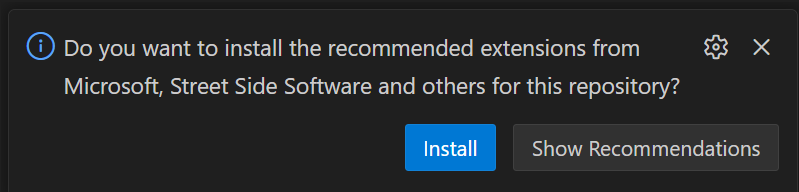
Click the Install button. When you’re asked to trust the publishers of certain extensions, click Trust Publishers & Install.
Having trouble installing the extensions? (Click for details)
If you accidentally closed the pop-up window without installing the extensions, or you never saw it at all, that’s ok. The first thing to try is to just close VS Code (hit the X in the top-right corner), open it again, and open your EECS_183 folder in VS Code again. The pop-up should appear again.
If it still does not appear, click the Extensions icon in the left sidebar – it looks like four squares, one slightly separated from the others. In the search bar at the top of the Extensions area, type @recommended. You should see something like this:
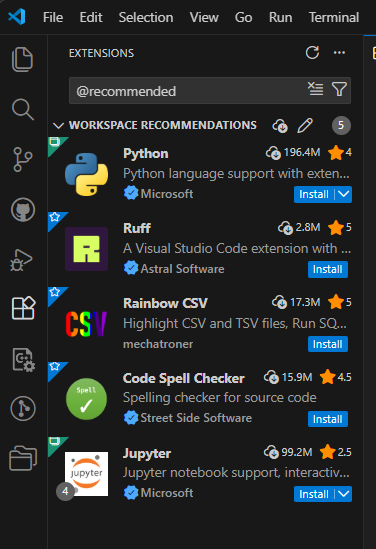
Click the blue Install button for each of the extensions in the Recommended list. (You might need to scroll down to see them all.) We only need the extensions in the Workspace Recommendations section. Ignore the extensions shown in the Other Recommendations section below that.
Setting Up VS Code for Running Python Programs
Python runs via something called an interpreter. This is just a special program that knows how to read and execute Python code. There’s an interpreter that comes with the Python installation on your computer, but we want to set up VS Code to use a special virtual environment interpreter. In Python, a virtual environment is a clean slate where we can install special tools without affecting the main Python installation on your computer. It’s kind of like a private toolbox (the virtual environment) inside of a garage full of tools (your computer). We can gather whatever special tools we need and put them inside, to be used only when we open up that toolbox. Whatever we put in the toolbox won’t clutter up the rest of the garage or get mixed up with other tools outside of the toolbox. This helps avoid certain conflicts.
In the subsections below, we’ll set up VS Code to use a virtual environment. You should only need to do this once.
Opening a Python File (and Selecting the Python Interpreter If Necessary)
For the moment, let’s make sure that VS Code is using the main Python interpreter installed on your computer. To check this, we need to open a Python file in VS Code.
Look at the left side bar of VS Code. You should see icons arranged vertically like the image below. You may have other icons as well, or icons in a different order. That’s fine.

We need to make sure that the EXPLORER area is open. The EXPLORER icon looks like two papers on top of each other:  . Do you see in the image above that the
 EXPLORER icon is brighter? When I took that screenshot, the EXPLORER area was open, so the icon is highlighted. If your EXPLORER icon is not highlighted, click on it to highlight it and thus open the EXPLORER area. You should then see something like this:
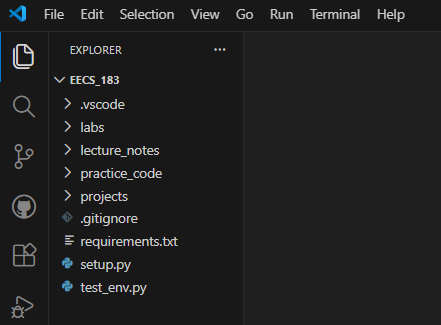
Also note that you can click the EXPLORER icon repeatedly to show/hide the EXPLORER area.
Double click on setup.py in the EXPLORER area of VS Code. You should see setup.py open in VS Code. You don’t have to understand the text in this file. You should see something like this:
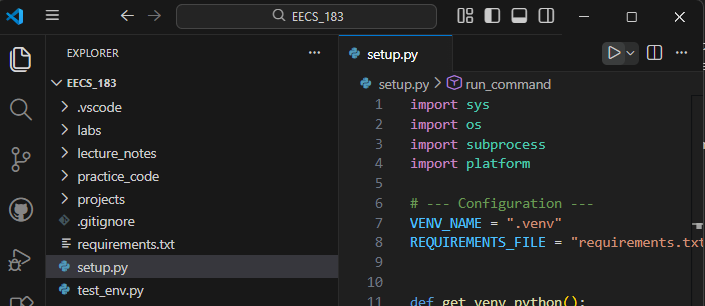
When you have a Python file (like setup.py) open, VS Code will usually automatically detect the Python interpreter installed on your computer. You can check that this is the case by looking in the lower-right corner of VS Code. You may see text indicating the version of your Python interpreter. For example, I see Python 3.14.2 (64-bit) in the lower-right corner of VS Code. Your version number should be 3.14.something. If it’s less, expand the special note below.
Do you see a yellow warning in the bottom-right saying "Select Interpreter"? Or do you see a version less than 3.14, such as 3.9, 3.10, etc? (Click for details)
If you don’t see any such text at all, first make sure that you have setup.py open in VS Code, that you’re looking at the text in that file. Then look for the interpreter version in the lower-right corner again.
Next, let’s select the interpreter manually to make sure it’s the right one:
- Type ctrl+shift+P (Windows) or cmd+shift+P (Mac) to open the Command Palette.
- Type “Python: Select Interpreter” and click on the corresponding option that appears:

-
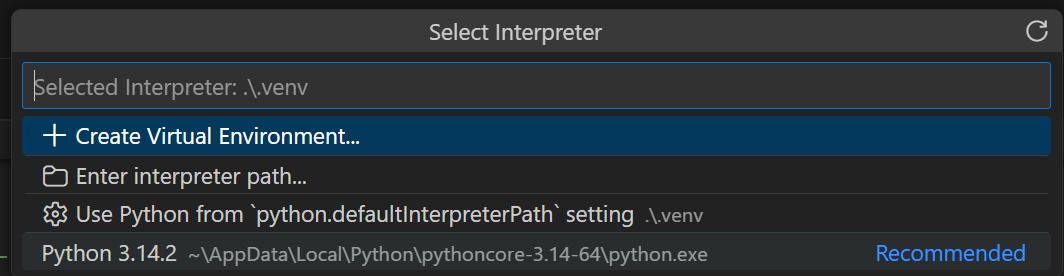
You should then see something like the image below. If you’re reading this tutorial from top to bottom, you likely do not have a virtual environment (venv) set up yet. In that case, choose the “3.14.something” option. For me, that’s “Python 3.14.2”. Click on that option.
-
It may take several seconds for VS Code to switch to the selected interpreter. You may see a little “spinning circle” icon in the bottom right corner of VS Code. Once it’s done, you should see the 3.14.something version in the bottom right, and no warning triangle nor “Select Interpreter” message.
If you don’t see a version 3.14.something for Python, then please revisit the Python installation tutorial to make sure Python is installed correctly on your computer.
Running setup.py to Create a Virtual Environment
Next, we’ll make a single virtual environment to be used for this entire course, with a traditional name: .venv. We can do this by running the setup.py file. Open it in VS Code if you haven’t already. With setup.py open in VS Code, with you looking at the text, look for the right-pointing triangle in the upper-right corner of VS Code. It’s like a “play” button, as shown in the upper-right of the image below:
Hit that button to run setup.py.
Are you asked "Do you want to run software from this untrusted publisher?" (Click for details)
If you see the message below that says “Do you want to run software from this untrusted publisher?” then type A (for “Always run”) and hit enter (Windows) or return (Mac). 
(Windows only) Does the run button seem to do nothing? (Click for details)
If you’re certain you’re hitting the correct button to run setup.py, but nothing is happening, the following may resolve your issue. If you’re uncertain how to accomplish the steps below, please reach out to someone on staff for help.
- Hit the windows key (looks like four squares). Type “python”. You should see your Python installation come up, like “Python 3.14 (64-bit)”, for example. Click “uninstall”.
- The settings app will open in Apps, Installed Apps. Scroll down to the “Python” section of the alphabetical list. For each item involving Python (e.g., “Python 3.14 (64-bit)”, “Python Install Manager”, “Python Launcher”, etc.), click the “…” button and choose “uninstall”.
- Go to https://www.python.org/downloads/. This time, do not hit the main download button, but instead click the smaller link saying “or get the standalone installer for Python <version number>”.
- Run that installer. Be sure you select the option to add Python to your PATH. Also select every option involving the word “debug” when given the opportunity. Also change the installation location to “C:\Python314” (if your version is 3.14), or a similar name for whatever version of Python you’re installing.
- Close VS Code, open it again, and redo the steps in the previous section.
Running setup.py may take several minutes. Eventually, you should see the output below in the TERMINAL area at the bottom of VS Code:
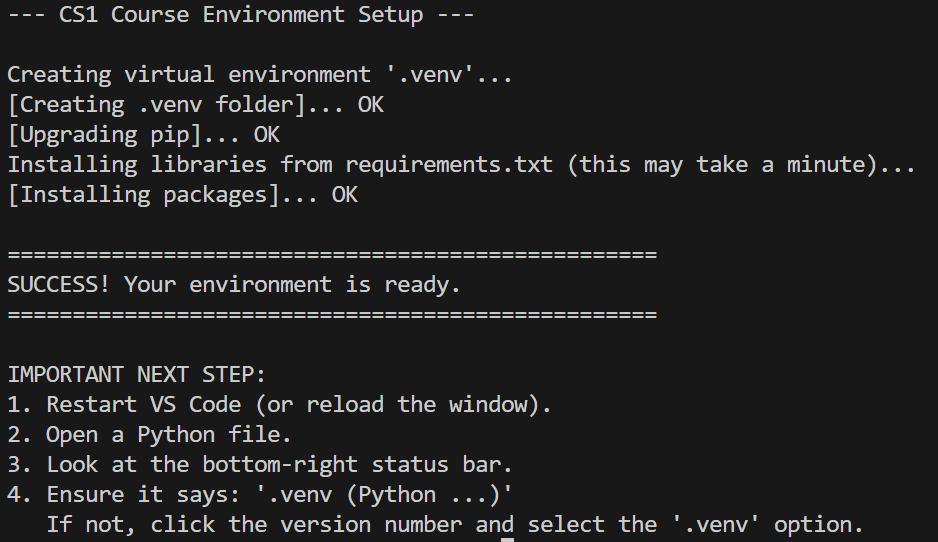
When it’s done, close VS Code by hitting the X in the top-right corner. Then open it again and open your EECS_183 folder in VS Code.
Windows only: Do you see an error message that "... Activate.ps1 cannot be loaded..."? (Click for details)
When you reopen VS Code, you might see an error message in the TERMINAL area at the bottom of VS Code saying something like:
File ...\.venv\Scripts\Activate.ps1 cannot be loaded because running scripts
is disabled on this system. For more information, see about_Execution_Policies
at https:/go.microsoft.com/fwlink/?LinkID=135170.
    + CategoryInfo          : SecurityError: (:) [], PSSecurityException
    + FullyQualifiedErrorId : UnauthorizedAccess
This just means Windows is trying to protect you from downloading random scripts from the internet. We need to tell Windows that it’s safe to run the scripts we just created. Do the following:
- Click the
Startbutton on your computer taskbar - the little Windows icon in the bottom middle or bottom left of your screen. - Type
Windows PowerShell. You should see something like the following:
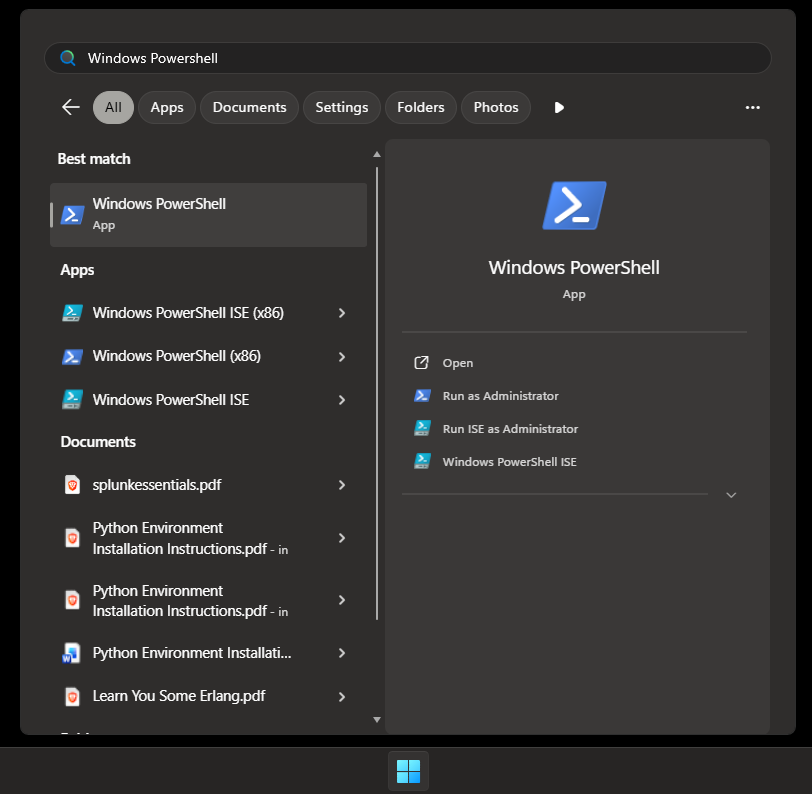
- Right-click the “Windows PowerShell” app in the list on the left and select
Run as Administrator. (You must chooseRun as Administrator, not just open Windows PowerShell normally.) -
A window with the title “Windows Powershell” will open. Copy and paste the following command into it and then press Enter:
Set-ExecutionPolicy RemoteSignedIf you get an error mentioning
Set-ExecutionPolicy : Access to the registry key, then PowerShell is not running as Administrator. Please close the PowerShell window and try again, making sure to right-click and chooseRun as Administrator. - You will be asked a question. Type the letter
Y(for “Yes”) and press Enter. - Let the script complete, and then close the PowerShell window.
- Close VS Code one last time, open it again, and open your
EECS_183folder in VS Code.
Selecting the Python Interpreter (with a venv)
Our virtual environment is hopefully set up now. Let’s check. Look in the bottom-right corner of VS Code again. Instead of something like Python 3.14.2 (64-bit), you should now see something like Python 3.14.2 (.venv) or perhaps .venv (3.14.2) – and again, your version number may be different but should be 3.14.something. (You’ll likely also see the .venv folder in the EXPLORER area in the top left, but I’m not talking about that here.) If you don’t see the .venv text in the bottom right, make sure you expand the box directly below; for Mac users in particular, the steps in the expanded box directly below will likely be necessary.
Don't see any text involving "venv" in the bottom-right? (Click for details)
First make sure that you have setup.py open in VS Code, that you’re looking at the text in that file. Then look for the venv text in the lower-right corner again.
If you still don’t see it, let’s select the virtual environment interpreter manually:
- Type ctrl+shift+P (Windows) or cmd+shift+P (Mac) to open the Command Palette.
-
Type “Python: Select Interpreter” and click on the corresponding option that appears:
-
Most likely the recommended option is the one with your Python version number and “(.venv)” at the end. For example, “Python 3.14.2 (.venv)”:
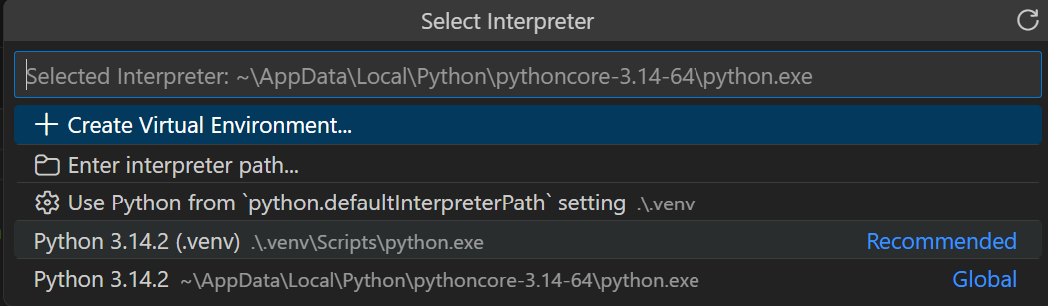
- After selecting the venv interpreter, it may take several seconds for VS Code to switch to the selected interpreter. You may see a little “spinning circle” icon in the bottom right corner of VS Code.
Verifying the Virtual Environment is Set Up Correctly
Let’s verify further that the virtual environment is set up correctly. In the EXPLORER section in the upper-left, find the test_env.py file – it’s in the base EECS_183 folder. Double-click test_env.py to open it in VS Code. Again, you don’t have to understand what this code is doing. With the test_env.py file open in VS Code, with you looking at the text in the file, hit the right-pointing triangle in the upper-right corner of VS Code to run it. The script may take up to 30 seconds or so to run, but eventually you should see output like the following:
Checking Python environment... (Python 3.14.0)
[OK]   Virtual Environment Active (C:\Users\Steve\Documents\EECS_183\.venv)
------------------------------------------------------------
[OK]    numpy                2.3.5
[OK]    pandas               2.3.3
[OK]    matplotlib           3.10.8
[OK]    seaborn              0.13.2
[OK]    scikit-learn         1.8.0
[OK]    jupyterlab           4.5.1
[OK]    imageio              2.37.2
[OK]    flake8               7.3.0
[OK]    pep8-naming          0.15.1
[OK]    flake8-bugbear       25.11.29
------------------------------------------------------------

SUCCESS! Your environment is ready for class.
It’s ok if your version numbers are different from those shown above.
If you get an error message about a KeyboardInterrupt, then try running test_env.py again. Sometimes the first time you run a Python file in a new virtual environment, it gets interrupted.
Turning On Auto Save
I recommend you turn on Auto Save, so that your edits are automatically saved periodically. Open the File menu. Find the Auto Save option. If the Auto Save option does not already have a check next to it, click it to add a check. It should then look like as shown below:
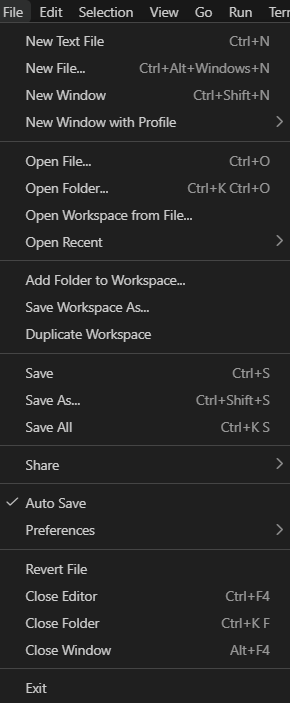
Making a New Python File in VS Code
Open your EECS_183 folder in VS Code if you don’t already have it open. Right-click (Windows) or control-click (Mac) on practice_code and choose New File. Name the file hello_again.py and then hit enter (Windows) or return (Mac). The .py means that the file we’re making is a Python code file.
Next, open hello_again.py by double-clicking on it in the EXPLORER area. You should see a blank file open. Paste in the following code:
print("Hello again!")
Save the file (File menu, Save, or note the shortcut key combination shown there). Click the right-pointing triangle in the upper-right corner of VS Code to run your program. You should see the output below in the TERMINAL area at the bottom of VS Code:
Hello again!
You just wrote your first Python program!
Finding Your Files From VS Code
Suppose you’re looking at a file in VS Code, and you’d like to open the File Explorer (Windows) or Finder (Mac) in the folder where that file exists. Here’s how to do that:
- Look in the
Explorerarea in the top left corner of VS Code. If you don’t see it, tap the icon in the upper-left area first.
 - Find the file there that you’re interested in.
-
Follow the next step according to your operating system:
- Windows: Right-click on the file and choose
Reveal in File Explorer: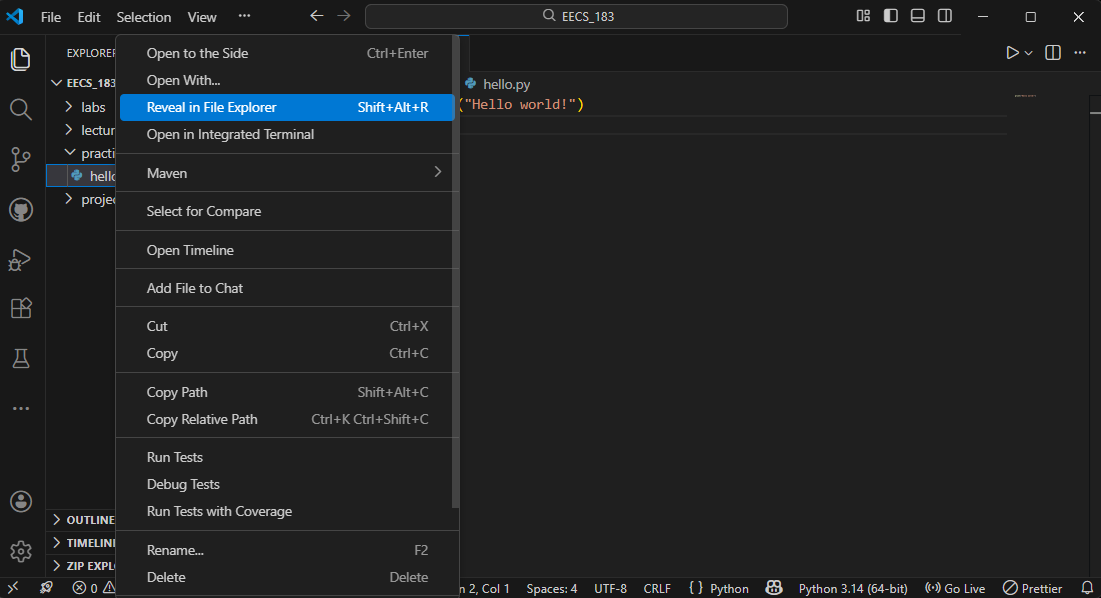
- Mac: Control-click on the file and choose
Reveal in Finder: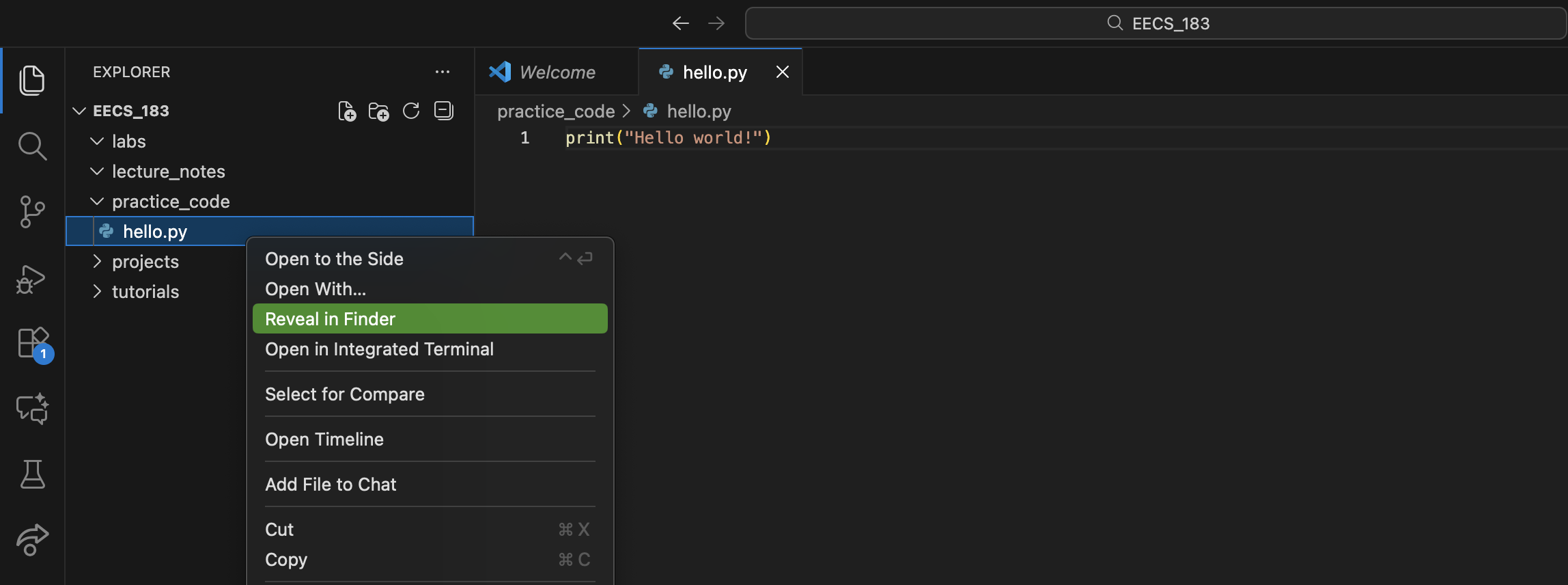
- Windows: Right-click on the file and choose
- The File Explorer (Windows) or Finder (Mac) program should open in the folder in which that file exists.
Why Not Use a Word Processor? (Optional Reading)
You can skip this section if you want! It’s just some additional information about why the instructions above are important to follow.
Let’s start with some vocabulary:
- A character is a single symbol, like a letter, or a number, or %, @, etc.
- The ASCII characters are basically the characters you see on a U.S. computer keyboard. ASCII stands for American Standard Code for Information Interchange, and is pronounced “ASK-ee”.
- A plain text file is a file that contains only ASCII characters (and possibly others that we won’t worry about).
- Unlike a word processor, a text editor works only with plain text files.
You probably have a text editor on your computer already. For Macs, it’s called TextEdit. For Windows computers, it’s called Notepad. But these text editors are not designed specifically for programming, so the instructions above help you get Visual Studio Code installed.
Programs like Microsoft Word, Apple Pages, Google Docs, OpenOffice Writer, and LibreOffice Writer are not text editors; rather, they are word processors. A word processor can open a plain text file, but also works with specially-formatted documents.
Why is this distinction important? Consider the following bit of Python code, which we’ll call version A:
print("Hello world!")
Version A is how the code would appear if I typed it in a text editor. If I run a Python program containing only the command above, then the message Hello world! will be printed. (More on this in class!)
Suppose that instead of using a plain text editor, I typed my code in a word processor like Google Docs or Microsoft Word. In that case, I’d get what we’ll call version B:
print("Hello world!")
Would it surprise you to know that version B is not valid Python code? What’s the difference? Version A uses what are called straight quotes, or dumb quotes, while version B uses smart quotes. Most word processors will automatically make the smart quotes appear, knowing to curve the starting quotes differently from the ending quotes. It looks nice in English, but it’s not valid Python code. Python requires that I use straight quotes. So if I’m trying to type code in a word processor that automatically adds smart quotes, it’d get very annoying. I’d have to regularly go back and fix it. There are a few other examples like this that make word processors particularly problematic for coding.
Copyright and Academic Integrity
© 2026 Steven Bogaerts.
Materials for this assignment were developed with assistance from course staff, including Jungeun Seo.
This work is licensed under a Creative Commons Attribution-NonCommercial-ShareAlike 4.0 International License.

All materials provided for this course, including but not limited to labs, projects, notes, and starter code, are the copyrighted intellectual property of the author(s) listed in the copyright notice above. While these materials are licensed for public non-commercial use, this license does not grant you permission to post or republish your solutions to these assignments.
It is strictly prohibited to post, share, or otherwise distribute solution code (in part or in full) in any manner or on any platform, public or private, where it may be accessed by anyone other than the course staff. This includes, but is not limited to:
- Public-facing websites (like a personal blog or public GitHub repo).
- Solution-sharing websites (like Chegg or Course Hero).
- Private collections, archives, or repositories (such as student group “test banks,” club wikis, or shared Google Drives).
- Group messaging platforms (like Discord or Slack).
To do so is a violation of the university’s academic integrity policy and will be treated as such.
Asking questions by posting small code snippets to our private course discussion forum is not a violation of this policy.